Manual · Plugin slots BETA

Your own plugins,
inside the rig.

NAM 9000 can now run your own effect plugins (VST3, and AU on Mac) as part of the rig, as pedals you place where they make sense: between your stomps, or between the effects after the amp. Plugin slots come with NAM 9000 Pro, Pro Bass and Premium, from version 1.21. They still carry a BETA tag while reports come in from more rigs and plugins.

Get it Add a plugin Place it The plugin pedal L · L+R · R STAGE & STUDIO Plugin slots panel Presets Good to know Report a problem

1 · Get it

In the regular NAM 9000, from 1.21

Plugin slots are part of NAM 9000 from version 1.21. Install it over your current version like any update; your presets, captures, packs and key stay where they are. Plugin slots need a NAM 9000 Pro, Pro Bass or Premium key. The free version shows them locked.

2 · Add a plugin

From ADD PEDAL, like any other pedal

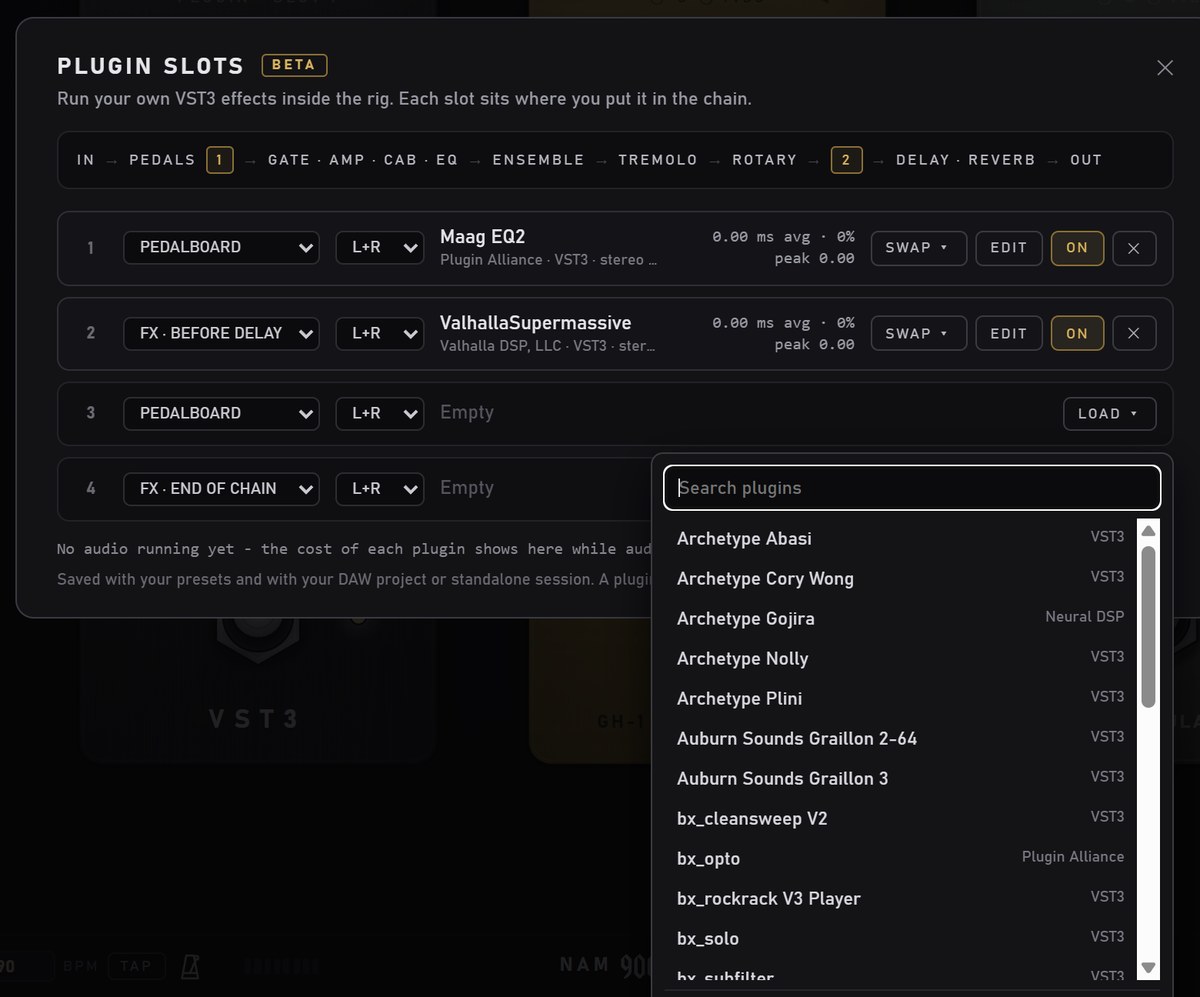
On the pedalboard page, click ADD PEDAL and choose PLUGIN (VST3)…. The slots panel opens with a list of the plugins on your computer.
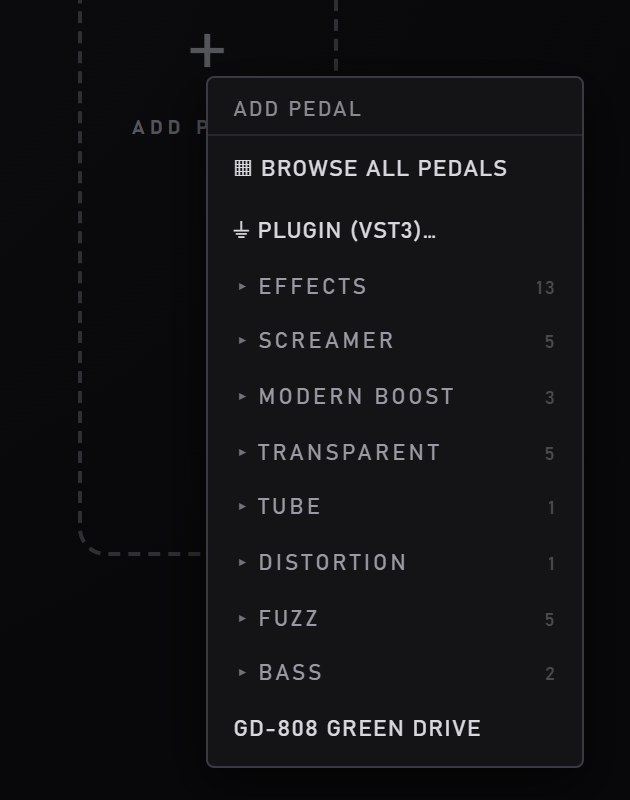
The ADD PEDAL menu with PLUGIN (VST3)… under BROWSE ALL PEDALS
The PLUGIN SLOTS panel with the searchable plugin list open
Left: ADD PEDAL → PLUGIN (VST3)… Right: pick from the list. Type to search; BROWSE… loads a plugin from anywhere; RESCAN looks through the plugin folders again.
  1. Pick a plugin. It loads in a moment and appears on the board as a pedal, at the end of your chain.
  2. The first time you load a plugin, NAM 9000 reads it to learn its name and maker. After that it is listed by name.
  3. One file can hold several effects (bundles like Waves). NAM 9000 then asks which one you want.
  4. Effects only: an instrument is refused with a message.

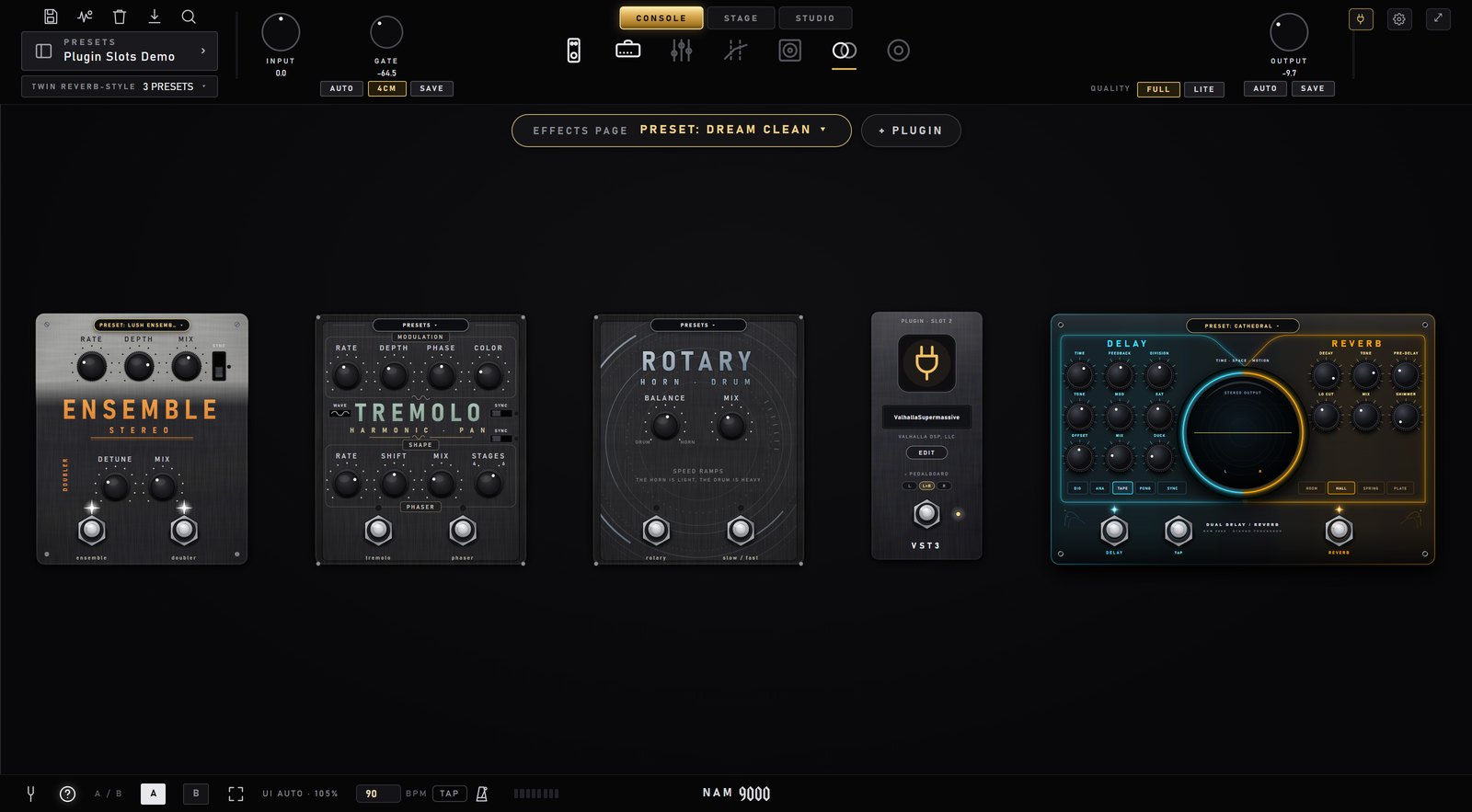
On the effects page, the same thing is the + PLUGIN button at the top, next to EFFECTS PAGE PRESET.
3 · Place it

Before the amp, or after it

A plugin pedal lives on one of the two pages, and you drag it to the spot in the chain where it makes sense.

On the pedalboard (before the amp)

Drag it between your stomps, exactly like a NAM pedal. The ‹ › arrows and ✕ on hover work too, and so does the Delete key. It runs right where it stands: a compressor plugin first in the chain, a drive plugin before your NAM capture, whatever you like.

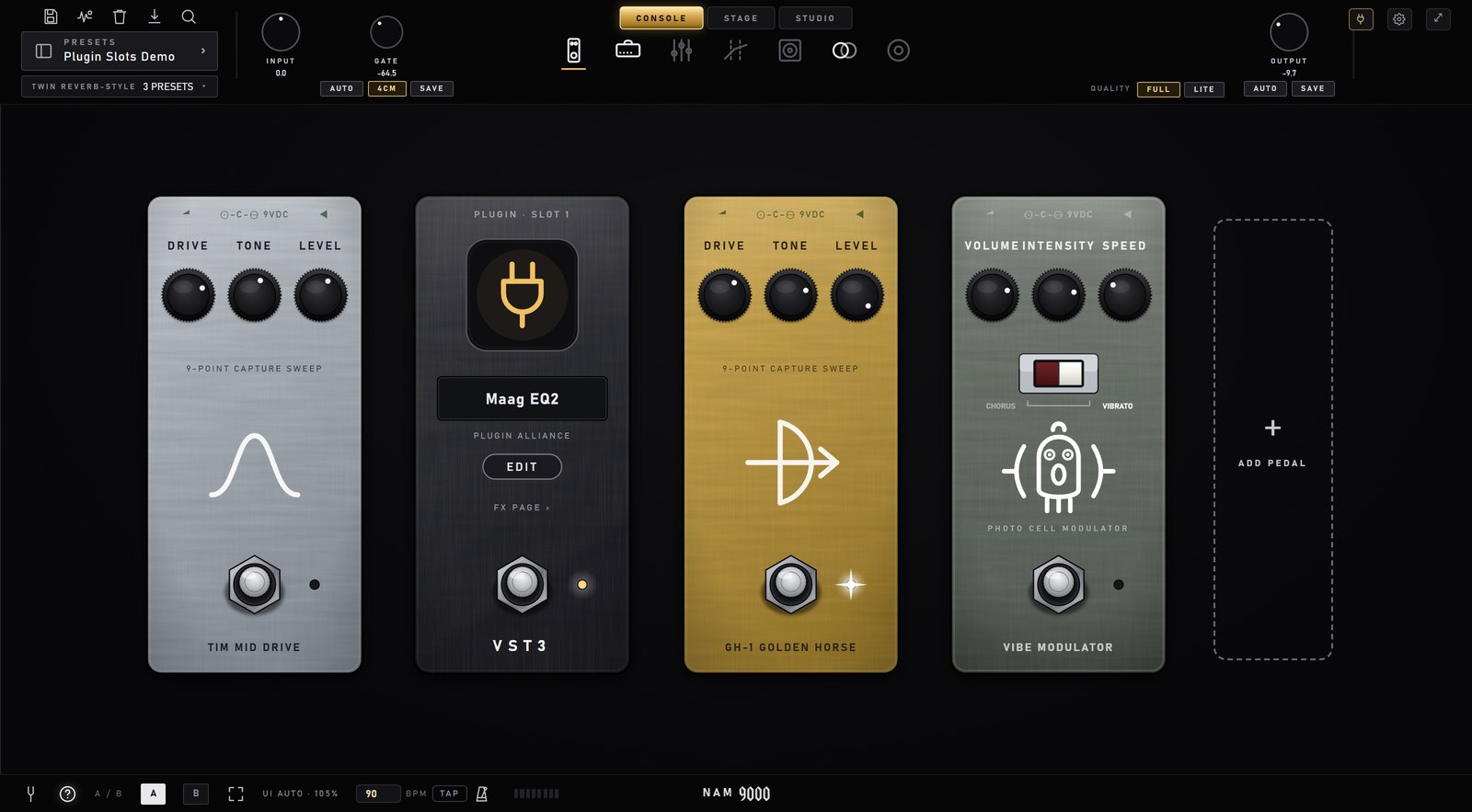
The pedalboard with a plugin pedal (Maag EQ2) between the stomps
A plugin pedal second in the chain, between two drives.

On the effects page (after the amp)

Drag it between the effect plates. There are five places it can sit, and the chain runs left to right:

The effects page with a plugin pedal between the ROTARY plate and the DELAY/REVERB plate
A reverb plugin placed before DELAY / REVERB. The row resizes itself to fit the window.

The link on the pedal moves it to the other page: FX PAGE › on the pedalboard, ‹ PEDALBOARD on the effects page.

Tip: right-click the DELAY / REVERB plate and choose HIDE PEDAL if you'd rather use your own delay or reverb. It folds into a badge at the top, and a click on the badge brings it back. Hiding only hides it: switch it off too if you don't want to hear it.

4 · The plugin pedal

Everything on one face

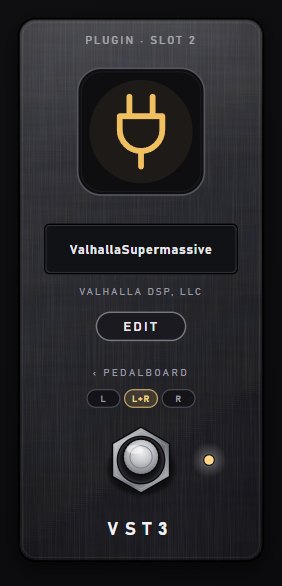
A plugin pedal close up: plug badge, plugin name, maker, EDIT, PEDALBOARD link, L / L+R / R buttons, footswitch and LED
  1. The plug badge is the plugin logo. Plugins carry no artwork of their own, so every plugin wears the same badge. Click it to open the slots panel.
  2. The name window shows the plugin's name, with its maker under it.
  3. EDIT opens the plugin's own window. It stays on top of NAM 9000 and your DAW; close it whenever you like, as the plugin keeps playing.
  4. FX PAGE › / ‹ PEDALBOARD moves it to the other page.
  5. L · L+R · R pick the side it works on (next section).
  6. The footswitch turns it on and off; the LED is lit when it's on. Where a plugin has its own bypass, that's the one used, so it stays in time with the rest of the chain.
  7. VST3 / AU at the bottom is the plugin's format.

If a preset uses a plugin you don't have, its pedal shows MISSING in orange with a FIX… button that opens the panel, where you can load something else or remove it.

5 · L · L+R · R

Which side it works on

On the effects pageOn the pedalboard
L+RBoth channels: a normal stereo insert. This is the default.Both lanes, as one stereo plugin: the left lane into its left input, the right lane into its right.
LThe left channel only. The right channel passes untouched.Lane L only.
RThe right channel only. The left channel passes untouched.Lane R only.

On the effects page this is handy with two amps panned left and right: put a plugin on one amp's side only. On the pedalboard it only matters with stereo input in a DAW, where the two inputs run as two lanes into two amps. The standalone takes one mono input, so there the buttons are hidden and every plugin on the board simply runs. With two boards (L/R), the lane also decides which board shows the pedal.

6 · STAGE & STUDIO

The same plugins, in every view

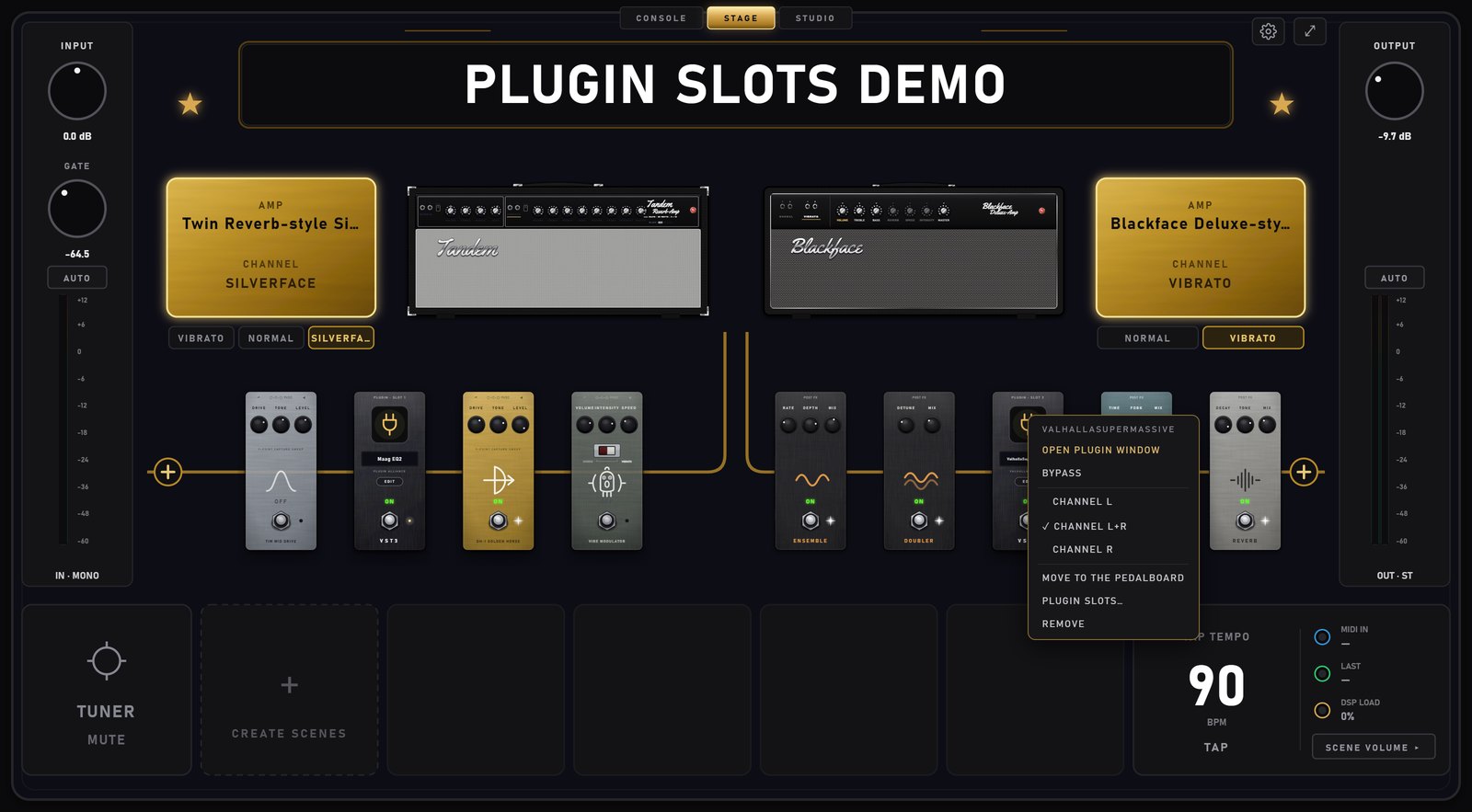
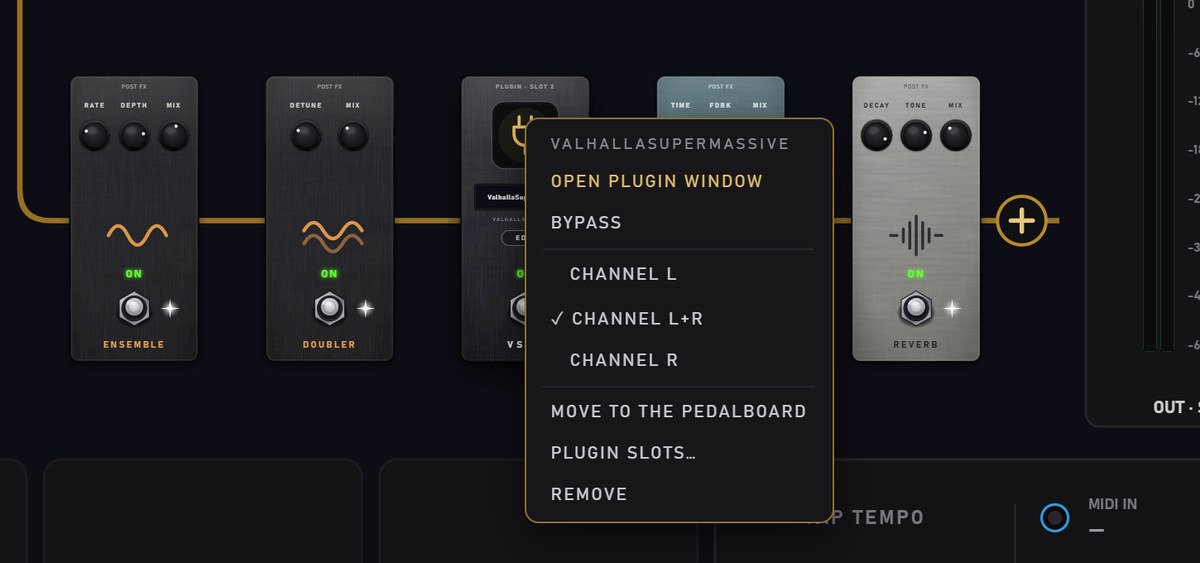
On STAGE, plugin pedals stand in the chain with everything else. Tap one to turn it on or off; right-click it for its menu: open its window, bypass, the L / L+R / R side, move it to the other page, or remove it.

The STAGE view with a plugin pedal on the board and another among the effects, its right-click menu open
The plugin right-click menu on STAGE: OPEN PLUGIN WINDOW, BYPASS, CHANNEL L / L+R / R, MOVE TO THE PEDALBOARD, PLUGIN SLOTS…, REMOVE
STAGE, with the right-click menu of the reverb plugin.

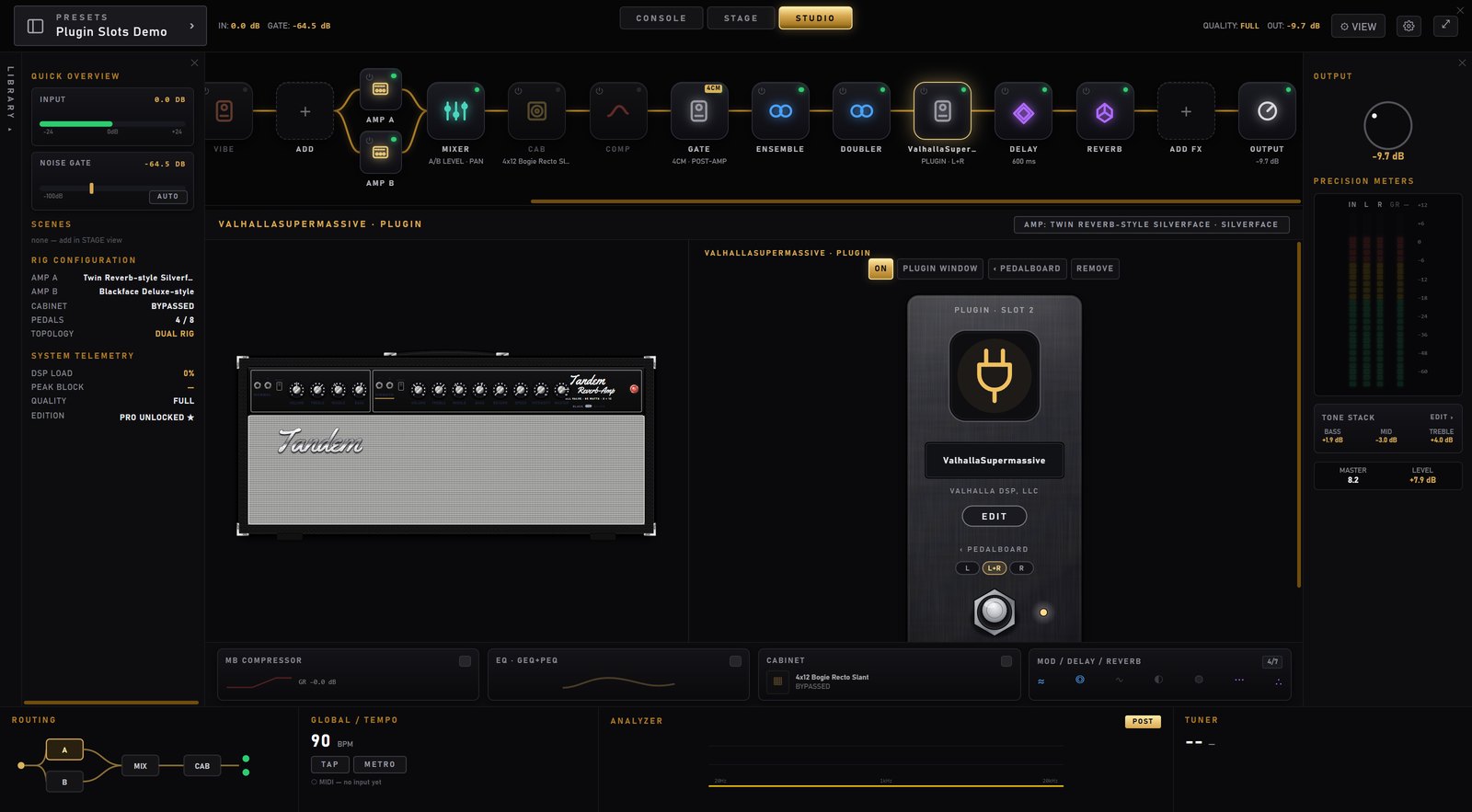
In STUDIO, each plugin is a tile in the chain, labelled PLUGIN. The ⏻ corner turns it on and off, right-click gives the same menu, and selecting it shows its pedal next to the amp, with ON, PLUGIN WINDOW, move and REMOVE buttons.

The STUDIO view with a plugin tile selected and its pedal shown beside the amp

7 · The plugin slots panel

All four slots in one place

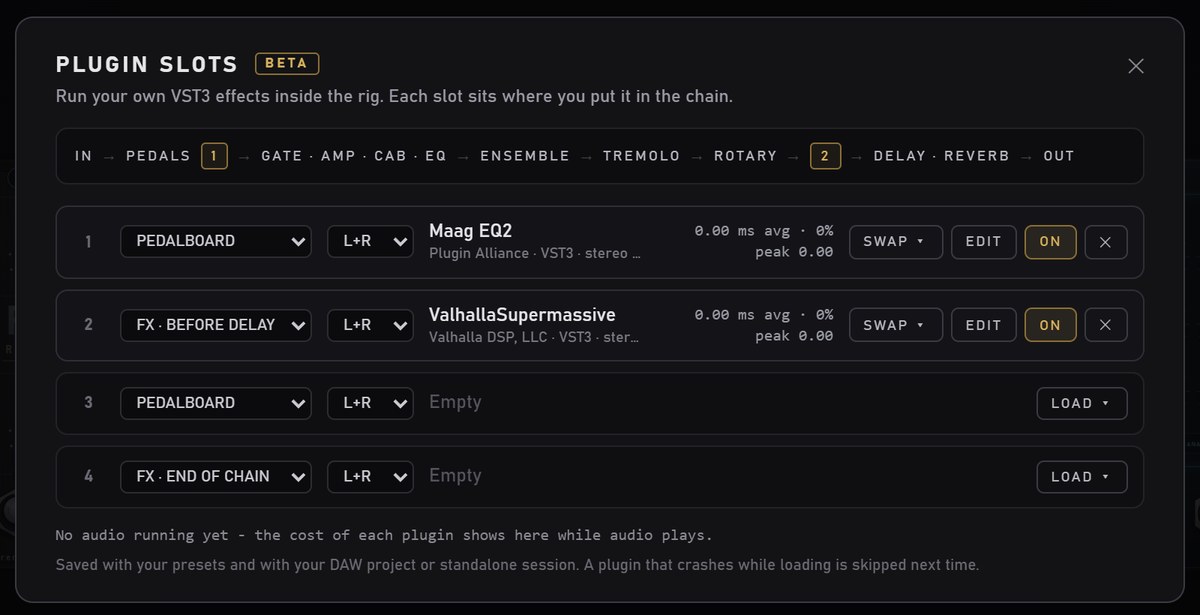
The plug button at the top right opens PLUGIN SLOTS: up to four plugins at a time, and how much each one costs.

The PLUGIN SLOTS panel: a chain strip, four slots with position, side, plugin name, cost, SWAP, EDIT, ON and remove

CPU: most effects cost next to nothing. Amp-sim plugins are the heavy ones: one can take 5–15% of a 256-sample block on a fast PC. If you hear crackles, look at the peaks here first.

8 · Presets and sessions

Saved with the rest of your rig

9 · Good to know

Before you rely on it

10 · Report a problem

Every report helps decide what happens next

Write to hello@nam9000.com with [PLUGIN BETA] in the subject. One mail per problem is easiest to sort.

Please include:

"It works fine with X" is just as useful, because it tells us which plugins are safe. Every report is read and sorted, and you'll get a short automatic thank-you.